File Handling in Python
In the previous chapter, we looked at Object-Oriented Programming and how classes and objects let a program organise data and behaviour together. Everything we've written so far in this Python series, though, has existed only while the program was actually running, disappearing the moment that program finished. File Handling is the final chapter in this Python Programming series, and it explains how a Python program can read data from files stored on disk, and write data back out to those files, allowing information to persist even after a program has finished running.
Nearly every real-world program needs to interact with files in some way, whether that's saving a user's settings, reading in a dataset, logging activity for later review, or exporting a report. Python provides a simple, built-in way of opening, reading from, writing to, and closing files, without needing any extra libraries for the most common cases, which is exactly what this chapter walks through.
Types of Files in Python
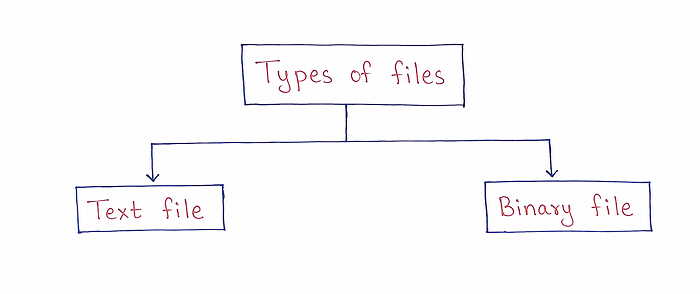
As shown in the diagram, files that a Python program works with generally fall into two categories: Text Files and Binary Files. Understanding the difference between them is important, since it directly affects how a file should be opened and how its contents should be read or written.
Text File
A Text File stores data as a sequence of readable characters, such as letters, numbers, and punctuation, organised into lines. Because the contents of a text file are made up of ordinary characters, they can be opened and read directly in a simple text editor, and Python automatically handles converting the raw bytes stored on disk into readable string data when working with a file in text mode. Common examples include plain .txt files, as well as source code files and simple log files.
Binary File
A Binary File, by contrast, stores data as raw sequences of bytes that don't necessarily correspond to readable text at all. Opening a binary file, such as an image, an audio file, or a compiled program, in a plain text editor typically produces unreadable, garbled output, since the bytes inside it are meant to be interpreted by a specific program that understands that particular binary format, rather than being read directly as text. When working with binary files in Python, data is handled as raw bytes rather than as readable strings.
Opening a File
Before a Python program can read from or write to a file, that file must first be opened using the built-in open() function, which returns a file object that the rest of the program can then work with. The open() function takes the name of the file, along with a mode that describes exactly how the file should be opened.
Syntax
file_object = open("filename", "mode")
Common File Modes
| Mode | Meaning |
|---|---|
| "r" | Opens a file for reading; the file must already exist |
| "w" | Opens a file for writing; creates the file if it doesn't exist, or overwrites it if it does |
| "a" | Opens a file for appending; new data is added to the end without erasing existing content |
| "r+" | Opens a file for both reading and writing; the file must already exist |
| "rb" / "wb" | Same as "r" and "w", but the file is opened in binary mode instead of text mode |
Example
channel = "CS Engineering Gyan"

file_object = open("channel_notes.txt", "w")
file_object.write(channel + " uploads Python tutorials every week.")
file_object.close()

print("File has been created and written successfully.")
Output
File has been created and written successfully.
Reading Files
Once a file has been opened in a reading mode, Python provides several different methods for actually retrieving its contents, depending on whether the entire file, one line, or all lines individually are needed.
read()
The read() method reads the entire contents of a file at once and returns it as a single string.
Example
file_object = open("channel_notes.txt", "r")
content = file_object.read()
file_object.close()

print(content)
Output
CS Engineering Gyan uploads Python tutorials every week.
readline()
The readline() method reads just a single line from the file each time it's called, starting from wherever the file's internal reading position currently is, and moving forward by one line with every additional call.
Example
file_object = open("channel_notes.txt", "r")
first_line = file_object.readline()
file_object.close()

print("First line:", first_line)
Output
First line: CS Engineering Gyan uploads Python tutorials every week.
readlines()
The readlines() method reads every line in the file at once, returning them together as a list of strings, with each individual line becoming one separate element in that list.
Example
channel = "CS Engineering Gyan"

file_object = open("upload_log.txt", "w")
file_object.write(channel + " - Video 1: Python Basics\n")
file_object.write(channel + " - Video 2: File Handling\n")
file_object.close()

file_object = open("upload_log.txt", "r")
lines = file_object.readlines()
file_object.close()

for line in lines:
    print(line.strip())
Output
CS Engineering Gyan - Video 1: Python Basics
CS Engineering Gyan - Video 2: File Handling
Writing to Files
Just as Python provides multiple ways to read from a file, it also provides more than one way to write data out to a file, depending on whether a single string or multiple lines need to be written at once.
write()
The write() method writes a single string to the file. If the file was opened in "w" mode, this will overwrite any existing content the file previously had.
Example
channel = "CS Engineering Gyan"

file_object = open("channel_notes.txt", "w")
file_object.write(channel + " has crossed 45,000 subscribers.")
file_object.close()

print("Notes file updated successfully.")
Output
Notes file updated successfully.
writelines()
The writelines() method writes a list of strings to the file all at once, one after another, without automatically inserting line breaks between them, meaning each string in the list should already include its own newline character if separate lines are actually needed.
Example
channel = "CS Engineering Gyan"
uploads = [channel + " - Video 1: Python Basics\n",
           channel + " - Video 2: File Handling\n",
           channel + " - Video 3: OOP in Python\n"]

file_object = open("upload_log.txt", "w")
file_object.writelines(uploads)
file_object.close()

print("Upload log written successfully.")
Output
Upload log written successfully.
Appending to a File
Opening a file in "a" mode allows new data to be added to the end of an existing file without erasing any of the content that was already there, which is particularly useful for tasks like maintaining a log file that keeps growing over time.
Example
channel = "CS Engineering Gyan"

file_object = open("upload_log.txt", "a")
file_object.write(channel + " - Video 4: File Handling Recap\n")
file_object.close()

file_object = open("upload_log.txt", "r")
print(file_object.read())
file_object.close()
Output
CS Engineering Gyan - Video 1: Python Basics
CS Engineering Gyan - Video 2: File Handling
CS Engineering Gyan - Video 3: OOP in Python
CS Engineering Gyan - Video 4: File Handling Recap
Closing a File and the with Statement
Every file that's opened using open() should eventually be closed using the close() method, which releases the system resources associated with that open file and ensures that any data still waiting to be written is actually saved properly. Forgetting to close a file can lead to data not being fully written, or to the file remaining locked and inaccessible to other programs.
Python offers a cleaner, safer alternative using the with statement, which automatically closes the file once its block of code finishes running, even if an error occurs somewhere inside that block, removing the need to manually call close() at all.
Example
channel = "CS Engineering Gyan"

with open("channel_notes.txt", "w") as file_object:
    file_object.write(channel + " uses the with statement for safer file handling.")

print("File written and closed automatically.")
Output
File written and closed automatically.
Because the with statement automatically handles closing the file correctly, it's generally considered the recommended way to work with files in Python, rather than manually calling open() and close() separately.
Working with Binary Files
Binary files are opened using a mode that includes a "b", such as "wb" for writing or "rb" for reading, and data is written to or read from them as bytes rather than as regular text strings.
Example
channel = "CS Engineering Gyan"

with open("channel_data.bin", "wb") as file_object:
    file_object.write(channel.encode())

with open("channel_data.bin", "rb") as file_object:
    data = file_object.read()

print(data.decode())
Output
CS Engineering Gyan
Here, the encode() method converts the text string into bytes before it's written to the binary file, and decode() converts those bytes back into a readable string once they've been read back in.
Managing Files
Beyond simply reading and writing content, Python's built-in os module provides functions for managing files themselves, such as renaming or deleting them, which is often necessary when a program needs to organise or clean up files it has created.
Example
import os

os.rename("channel_notes.txt", "cs_engineering_gyan_notes.txt")
print("File renamed successfully.")

if os.path.exists("channel_data.bin"):
    os.remove("channel_data.bin")
    print("Binary file deleted successfully.")
Output
File renamed successfully.
Binary file deleted successfully.
Here, os.rename() changes a file's name, while os.path.exists() checks whether a file is actually present before os.remove() is used to delete it, helping avoid an error that would otherwise occur if the program tried to delete a file that didn't exist.
Comparison of Common File Handling Methods
| Method | What It Does |
|---|---|
| read() | Reads the entire file at once as a single string |
| readline() | Reads one line at a time from the file |
| readlines() | Reads all lines at once, returned as a list of strings |
| write() | Writes a single string to the file |
| writelines() | Writes a list of strings to the file at once |
Best Practices While Learning File Handling
- Prefer the with statement over manually calling open() and close(), since it automatically handles closing the file correctly, even if an error occurs.
- Choose the correct mode carefully — remember that "w" mode overwrites existing content, while "a" mode safely adds to it.
- Use readlines() or a simple loop over the file object when you need to process a file one line at a time, rather than loading a very large file entirely into memory with read().
- Always check whether a file exists using os.path.exists() before attempting to delete it, to avoid an unnecessary error.
- Remember to open binary files using a mode that includes "b", and to encode and decode data appropriately when converting between text and bytes.
Common Mistakes Beginners Make
| Mistake | Correct Practice |
|---|---|
| Forgetting to close a file after opening it manually. | Use the with statement so the file is closed automatically, even if an error occurs. |
| Opening a file in "w" mode when the intention was actually to add new content. | Use "a" mode instead, since "w" mode overwrites and erases any existing content in the file. |
| Trying to read a binary file using a text mode like "r". | Open binary files using a mode that includes "b", such as "rb", to correctly handle raw byte data. |
| Assuming writelines() automatically adds line breaks between entries. | Include a newline character at the end of each string yourself if separate lines are needed. |
Frequently Asked Interview Questions
-
What is the difference between a text file and a binary file?
A text file stores data as readable characters organised into lines, while a binary file stores data as raw bytes that aren't necessarily readable as plain text. -
What does the "w" mode do when opening a file that already exists?
It overwrites the existing file, erasing its previous content, so any new data written afterward replaces what was there before. -
What is the difference between read() and readlines()?
read() returns the entire file's contents as a single string, while readlines() returns the file's contents as a list of strings, with each line as a separate element. -
Why is the with statement recommended over manually calling open() and close()?
Because the with statement automatically closes the file once its block finishes running, even if an error occurs, reducing the risk of a file being left open unintentionally. -
How is appending to a file different from writing to it?
Appending, using "a" mode, adds new data to the end of a file without erasing its existing content, while writing in "w" mode overwrites the file entirely. -
What do encode() and decode() do when working with binary files?
encode() converts a text string into bytes before writing it to a binary file, while decode() converts bytes read back from a binary file into a readable text string. -
How can you safely delete a file in Python without causing an error if it doesn't exist?
By first checking whether the file exists using os.path.exists() before calling os.remove() to delete it.
Summary
File Handling allows a Python program to work with data that persists beyond the program's own execution, by reading from and writing to files stored on disk. We looked at the difference between text and binary files, how to open a file using different modes, the various methods available for reading and writing data, why the with statement is the recommended way to handle files safely, how to work with binary data, and how the os module can be used to rename or delete files.
This chapter completes the Python Programming series covered on this site, bringing together everything from programming fundamentals, problem solving, and algorithms, through Python's syntax, data types, operators, and control statements, to functions, object-oriented programming, and finally file handling — the full set of concepts needed to write complete, well-structured Python programs.